
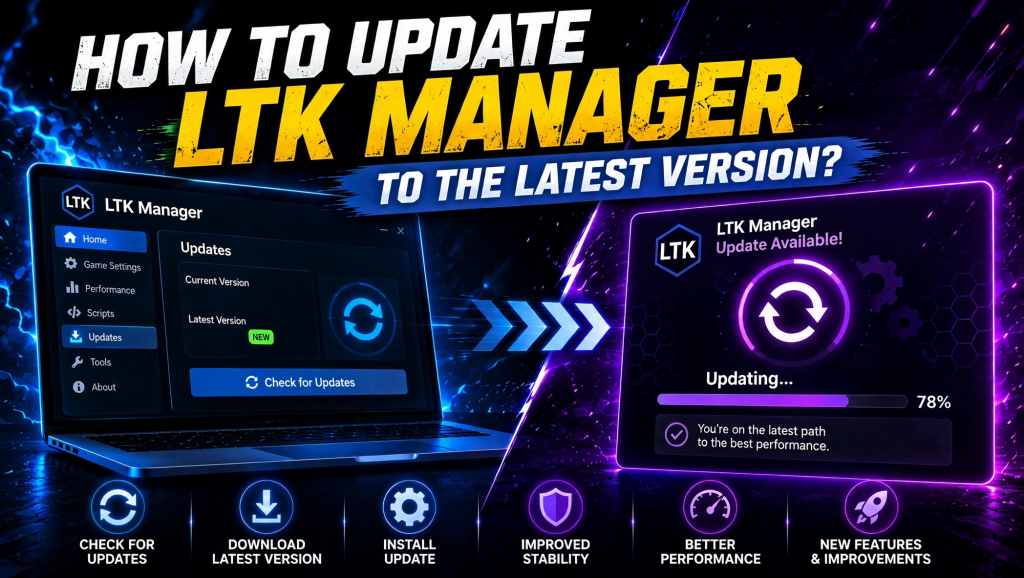
Updating LTK Manager is quick, and it is the first thing to do whenever a new League of Legends patch breaks your mods. Open the app, check the Home page for a new version, install the update, restart the app, and re-patch your mods before you play. Most updates take only a few minutes, and they keep your library working with the current game version.
LTK Manager is a free mod manager for League of Legends, and its updates usually follow League patches closely. Follow this guide in order, and do not skip the re-patch step at the end. This takes only a few minutes in most cases.
Read More: How to Fix LTK Manager Not Working After a League of Legends Patch?
Why Updating LTK Manager Matters
LTK Manager builds an overlay that the League patcher serves to the game, so it must match the current game build. When League patches and LTK Manager stays old, that overlay can fail, or mods can stop loading even though they are still in your library. An update fixes that mismatch, and it often includes fixes for problems reported after the last patch.
Updates also keep your mod library safe. A new version may handle a changed game file better, or warn you sooner about a mod that can no longer work. Skipping updates does not save time in the long run. It usually creates a bigger fix later, after several patches have stacked up.
Check Whether a New Version Is Available
Open LTK Manager and go to the Home page first. Recent changes are listed there, newest first, and a newer version shows an Update option when one is ready. If no update is shown, your version is current for now, and there is no need to download anything else. Do not search for an update file on a random site. Use the official League Toolkit release page, and check the file name and source before you run any installer.
LTK Manager also checks for new versions on its own, so a prompt may appear when you open the app. If that prompt appears after a League patch, accept it before you try to fix individual mods. Updating first avoids fixing a problem that the new version already solves.
Before You Update: Protect Your Mods
A normal update should not delete your library, but a short safety check makes recovery easy if something goes wrong. Note which mods you have enabled, and which profiles you use most. Take a screenshot of your Mods page if your library is large. That record lets you rebuild your setup quickly without guessing.
Stop the patcher before you update, so no mod files are in use during the install. Close League as well, because an open game can lock files that the update needs. Keep LTK Manager installed separately from the League folder. A separate install avoids file conflicts and makes future updates cleaner.
Update LTK Manager Step by Step
Follow these steps in order, and do not start League until the update is complete.
- Open LTK Manager and go to the Home page.
- Look at Recent changes, newest first, and select Update when a new version is shown.
- Wait until the installer finishes, and do not close the app halfway through.
- Restart LTK Manager after the update, even if it does not ask you to.
- Confirm the new version on the Home page before you touch any mod.
If the update asks for permission to change files on your computer, allow it only for the official installer you downloaded. A clean restart after the update clears a stuck patcher process and lets the new version read your library correctly.
What to Do After the Update Finishes
After the update, run a health check on your library before you play. A new version can change how mods are read, so a mod that worked before may now need a repair. Repair what can be repaired, disable what cannot, and keep a note of any mod that is still broken. This check is short, and it prevents a surprise in your first game.
Then re-patch your mods and test them in a Practice Tool or custom game. Check every champion, map, and effect you changed, one by one. Only return to ranked play when that test is clean. If a mod fails after a clean re-patch, leave it disabled until its author updates it for the current patch.
Fix Common Update Problems
If an update will not install, or LTK Manager still shows the old version, try these fixes in order.
- Close League and stop the patcher, then try the update again.
- Restart your computer if the installer says a file is in use.
- Check your internet connection, and try again on a stable connection.
- Download the official installer again only from the official League Toolkit release page.
- If the app opens but mods fail, run a health check and re-patch before you reinstall anything.
Do not reinstall LTK Manager as a first step, because a reinstall can disturb your library and profiles. A repair and re-patch solve most update problems without that risk. If the problem continues after these steps, note the exact error message, because that message points to the real cause.
Conclusion
Updating LTK Manager is a short routine that prevents most patch day problems. Check the Home page, install the new version, restart the app, run a health check, re-patch your mods, and test in a Practice Tool before ranked play. Do it after every League patch, use only the official release page, and keep your library small and fan-made only. With that habit, your mods stay working, and updates stop feeling like troubleshooting.
Pingback: Install Mods From Runeforge Using LTK Manager