
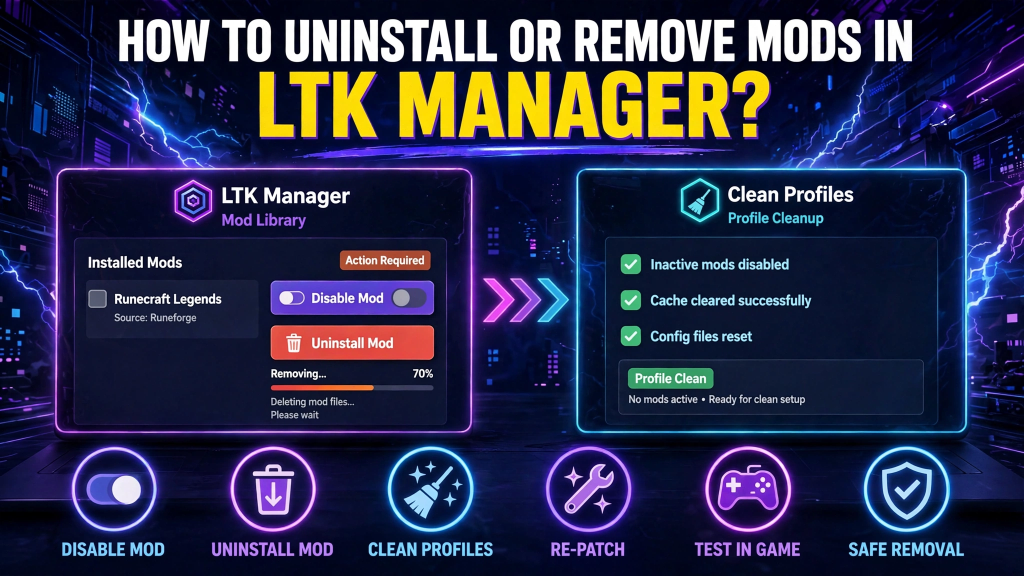
Removing a mod in LTK Manager is easy, but the right method depends on whether you want a short break or a clean removal. Disabling a mod turns it off for now, while uninstalling deletes it from your library and every profile. This guide explains both options, so you do not delete a mod you only meant to pause. LTK Manager is a free mod manager for League of Legends, and it keeps your mods separate from the original game files. Follow the steps in order, and always stop the patcher before you remove anything. This guide keeps the process simple, safe, and reversible where possible.
Read More: How to Install Mods From Runeforge Using LTK Manager?
Disable vs Delete: What Is the Difference
Disabling a mod turns it off without deleting it. The mod stays in your library, and you can turn it back on later without downloading it again. This is the best choice when a mod fails after a patch, or when you want to test whether that mod is causing a problem. A disabled mod will not load in game, and it will not be included in the next patch.
Uninstalling is different, and it is permanent in LTK Manager. Uninstalling deletes the mod from your library and every profile that used it. You will need to download or import it again if you want it back. Use uninstall only when you are sure you no longer want the mod, or when a clean reinstall is the only fix left.
When You Should Remove a Mod
Remove a mod when it no longer works, when its author has stopped updating it, or when you simply do not use it anymore. A broken mod after a League patch is a common reason, especially if it fails a health check and a repair. An old mod that changes a champion you no longer play is another good candidate for removal. Keeping unused mods only makes patch days longer, because every enabled mod needs checking.
Do not remove every mod at the first sign of trouble. If several mods fail at once, the cause is often an outdated app or an unfinished League update, not every mod. Update LTK Manager first, run a health check, and remove only the mods that still fail. That approach keeps your working library intact.
Before You Delete: Save Your Setup
Before you uninstall anything, note which mods you have enabled and which profiles use them. A quick screenshot of your Mods page is enough for most players. If you delete a mod by mistake, that record tells you exactly what to reinstall, instead of guessing from memory. This step is short, and it is especially useful when your library is large.
Stop the patcher before you delete, so no mod files are in use. Close League as well, because an open game can lock files that LTK Manager needs to remove. Never delete mod files by hand from the League folder. LTK Manager tracks its own library, and manual deletions can leave a broken entry that is harder to clean up.
Uninstall a Mod Step by Step
Follow these steps in order, and do not start League until the removal is complete.
- Stop the patcher in LTK Manager, and close League completely.
- Go to the Mods page and find the mod you want to remove.
- Disable the mod first if you are not yet sure about deleting it.
- Select Uninstall for the mod you want to delete permanently.
- Confirm the uninstall, and wait until the mod disappears from your library.
Read More: What Is LTK Manager and How Does It Work for League of Legends?
After the uninstall, check your profiles to confirm the mod is gone from each one. A deleted mod should not appear in any profile, and it should not load in your next patch. If it still appears, restart LTK Manager and check again before you try another fix.
Clean Up Profiles and Leftover Files
After deleting a mod, take a minute to clean up your profiles. Remove empty profiles you no longer use, and check that your main profile contains only the mods you actually want. A tidy profile list makes future patches faster, because there are fewer combinations to test. It also makes it easier to spot a mod that should have been removed.
Then re-patch your remaining mods and test them in a Practice Tool or custom game. Check the champions, maps, and effects you changed, one by one. A clean test confirms that the removal did not break anything else. If a remaining mod looks wrong after the cleanup, disable it and test again, so you can find the cause quickly.
What to Do If a Mod Will Not Delete
If a mod will not delete, try these fixes in order, and do not delete files by hand as a first step.
- Stop the patcher, close League, and try the uninstall again.
- Restart LTK Manager, then try the uninstall a second time.
- Restart your computer if the app says a file is in use.
- Disable the mod first, re-patch without it, then try to uninstall again.
- Check that LTK Manager is updated, and that League has finished updating.
If the mod still will not delete after these steps, note the exact error message and check the mod page for an author update or a known issue. Do not use a third-party cleaner to force the deletion, because that can damage your library or your game install. A careful, repeated attempt inside LTK Manager is safer than a forced removal outside it.
Conclusion
Uninstalling mods in LTK Manager is safe when you use the right option for the right job. Disable a mod when you want a pause or a test, and uninstall it only when you want a clean removal from your library and every profile. Stop the patcher first, save your setup, clean up your profiles, re-patch, and test in a Practice Tool. With that routine, removing mods stays simple, and your library stays tidy for the next League patch.