
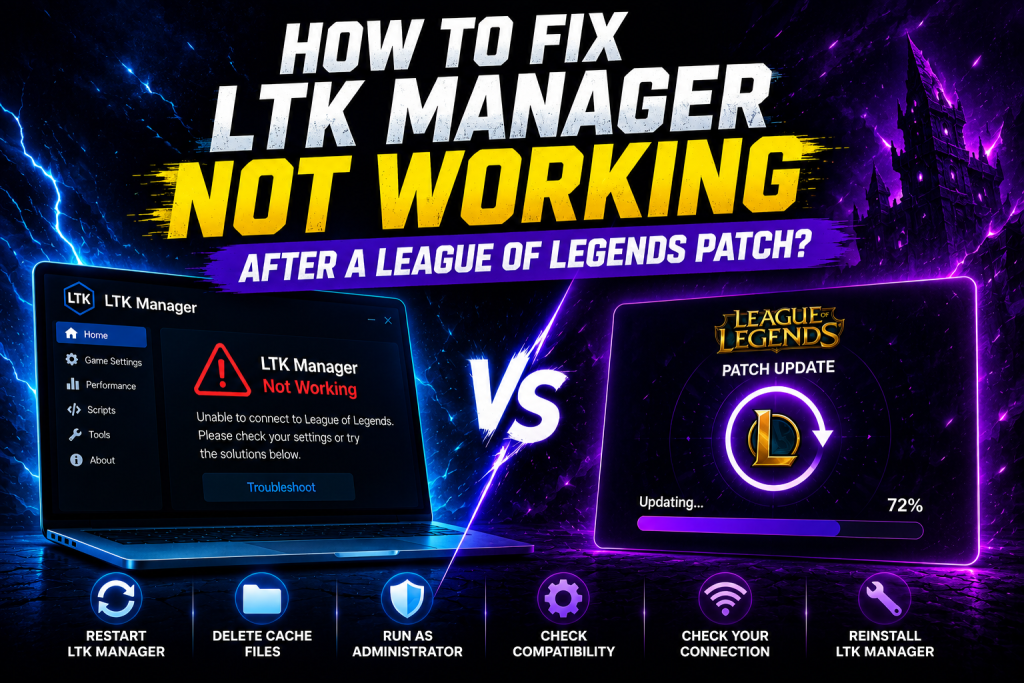
LTK Manager usually stops working after a League of Legends patch because the patch changes game files that your mods were built for. The fix is simple in most cases: update LTK Manager first, run a health check, repair what can be repaired, disable what cannot, and re-patch before you play.
This guide follows that exact order, so you do not waste time reinstalling the app or your mods. LTK Manager is a free mod manager for League of Legends, and its patcher must match the current game version to load your mods correctly. Follow the steps in order, and test in a Practice Tool before any ranked game.
Read More: LTK Manager vs cslol-manager: Which One Should You Use in 2026?
Why LTK Manager Stops Working After a Patch
League of Legends patches arrive about every two weeks, and each patch can rewrite game archives. A mod built for the old archives may no longer match the new files, so LTK Manager flags it, or the patcher cannot load it at all. This does not always mean the app is broken. In most cases, only one or two mods are outdated, while the manager itself is waiting for its own patch update.
The patcher also depends on the current game build. If LTK Manager is old, or League is only half updated, the overlay it builds will not match what the game asks for. That is why random reinstalls rarely help. A calm, ordered check finds the real cause much faster than starting again from zero.
Update LTK Manager First
Open LTK Manager and look at the Home page before you touch any mod. Recent changes are listed there, newest first, and a newer version shows an Update option. Install that update first, because LTK Manager releases follow League patches closely. Do not download the app again from a random site. Use the official League Toolkit release page, and check the file name and source before you run any installer.
After the update, restart LTK Manager. A fresh start clears a stuck patcher process and lets the new version read your library correctly. If an update is not available yet, wait for it instead of forcing an old version to work. Patience on patch day is often the fix itself.
Confirm League Is Fully Updated
Let League of Legends finish updating completely through the Riot Client before you change anything in LTK Manager. A half-updated game produces confusing errors, because some files are new and some are still old. Open the client, wait until the update is complete, and only then return to LTK Manager.
Also confirm that LTK Manager knows where League is installed. If the game moved, or the folder changed, the manager cannot build a correct overlay. Use Auto-detect in Settings, or pick the folder with the game executable yourself. Keep LTK Manager installed separately from the League folder, as a separate install avoids file conflicts.
Check Mod Health and Repair Broken Mods
Run a health check on your library after the patch. This is the step that tells you which mods are healthy, which can be repaired, and which are broken for now.
- Stop the patcher before you start a repair, so no mod files are in use.
- Select Check health on the Mods page, and wait for the full result.
- Repair every mod that shows a Repair option, one at a time if needed.
- Note every mod marked as not auto-fixable, and keep that list for the next step.
- Do not enable a broken mod again just to test it in a ranked game.
A health check does not fix a mod whose author has not updated it yet. It only separates the mods you can save from the mods you must wait for, and that separation saves a lot of guesswork.
What to Do When a Mod Still Does Not Work
If a mod still does not work after a repair, disable it for now and leave it in your library. Disabling is safer than deleting, because you can turn it back on when its author releases an update. Check the mod page or community where you got it, and look for a version built for the current League patch. Do not replace it with a random file from an unknown upload, and do not use a tool that promises paid skins or gameplay advantages to get around the problem.
If most mods work and only one fails, that single mod is usually the cause, not LTK Manager. Keep your enabled library small while you test, so a new failure is easy to trace. This habit also makes the next patch easier, because fewer mods need checking.
Re-patch and Test Before a Ranked Game
Once repairs are done and broken mods are disabled, rebuild your setup and test it in a safe game first.
- Select Start in LTK Manager and wait until the status confirms the patcher is running.
- Open League through the Riot Client in the usual way.
- Enter a Practice Tool or custom game, not a ranked match.
- Check every champion, map, and effect you changed, one by one.
- If something looks wrong, stop the patcher, disable that mod, and re-patch again.
Only return to ranked play when the Practice Tool test is clean. If the same mod fails again after a clean re-patch, leave it disabled until its author updates it. That discipline keeps a patch day problem from becoming an account or ranked problem.
Conclusion
LTK Manager not working after a patch is usually a version mismatch, not a broken app. Update LTK Manager first, let League finish updating, run a health check, repair what you can, disable what you cannot, and re-patch before you play. Test in a Practice Tool, keep your library small, and use only fan-made visual mods from trusted sources. With that routine, most patch days become a short check, not a long troubleshooting session.