
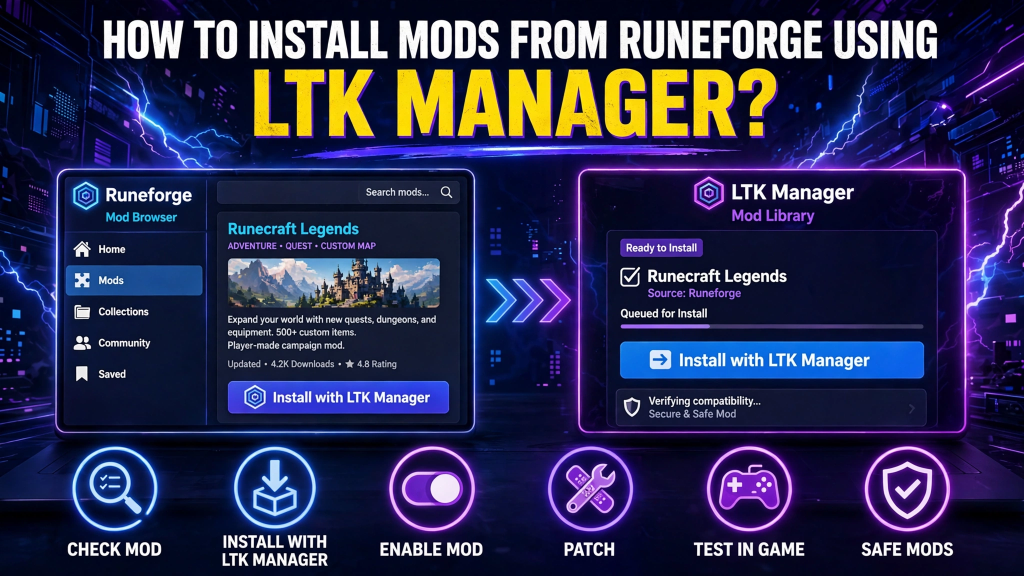
Runeforge is one of the easiest places to find League of Legends mods, and LTK Manager can install them with a single link. Open a mod page on Runeforge, use the Install with LTK Manager option, and the mod appears in your library, ready to enable and patch.
This guide shows that exact flow, plus what to check before you install, so a bad file does not break your game. LTK Manager is a free mod manager for League of Legends, and it works with fan-made visual mods only. Follow the steps in order, and test every new mod in a Practice Tool first. Take your time with this check.
Read More: How to Update LTK Manager to the Latest Version?
What Runeforge Is and Why Players Use It
Runeforge is a community site where mod makers share League of Legends mods, including champion skins, map changes, and other visual work. Players use it because mods are easy to browse, preview, and download in one place, instead of searching through scattered uploads. Many Runeforge pages also link directly to LTK Manager, which removes the manual download and import step.
Runeforge is not the official League Toolkit site, and it is not owned by Riot. Mods there are made by the community, so quality and update speed vary by author. That is why you should check each mod carefully, even when the install itself is easy. A good mod page, a recent update, and clear pictures are all positive signs.
How Install With LTK Manager Links Work
An Install with LTK Manager link tells your browser to hand the mod to LTK Manager instead of saving a file for you. LTK Manager then adds the mod to your library, usually as a .fantome or .modpkg file, and shows it on the Mods page. From there, you can enable it, assign it to a profile, and patch it into the game. The link does not change your League installation itself. LTK Manager builds an overlay that the patcher serves to the game, and it leaves the original game files alone.
If the link does not open LTK Manager, do not panic. That usually means the app was closed, or your browser did not pass the link correctly. Open LTK Manager first, then try the link again. If it still fails, download the mod file yourself and import it in LTK Manager, as explained below.
Before You Install: Check the Mod First
A quick check before installing saves a long fix later. Look at the mod page and confirm the basics before you click anything.
Check the author, the last update date, and whether the mod was built for the current League patch. Read the mod description for any limits, such as a single champion or a single map. Look at the preview pictures, and avoid a mod with no preview, no description, or a promise of paid skins or gameplay advantages. Those are red flags, not features.
Also check your LTK Manager version before you install. Update the app first if a new version is available, and let League finish updating. A mod built for a new patch will not work well with an old app, and a mod built for an old patch may need an author update first.
Install a Mod From Runeforge Step by Step
Follow these steps in order, and do not start League until the install is complete.
- Open LTK Manager first, and confirm it is running.
- Go to Runeforge and open the mod page you want.
- Select Install with LTK Manager on that page.
- Wait until LTK Manager shows the mod in your library.
- Enable the mod, and assign it to the profile you want to use.
If the link does not work, download the .fantome or .modpkg file from the mod page, then import it in LTK Manager from the Mods page. Do not rename the file, and do not unzip a file that should stay packed. A renamed or unpacked file may fail to import, or fail to load in game.
What Happens After You Install a Mod
After installing, the mod sits in your library, but it is not active in game until you patch. Enable the mod, check that it is in the right profile, and then select Start in LTK Manager. Wait until the status confirms the patcher is running, then open League through the Riot Client in the usual way. Test the mod in a Practice Tool or custom game first, and check the champion, map, or effect it changes.
If the mod looks right in the Practice Tool, you can use it in normal play. If it looks wrong, or does not appear at all, stop the patcher and disable that mod before you try another fix. Testing one mod at a time makes it easy to find the cause, especially when you install several mods in one day.
Fix a Mod That Will Not Install or Show Up
If a mod will not install, or installs but does not show in game, try these fixes in order.
- Close League, stop the patcher, and try the install again.
- Update LTK Manager, then let League finish updating completely.
- Check that the mod was built for the current League patch.
- Import the downloaded file again, without renaming or unzipping it.
- Disable other mods, then test this mod alone in a Practice Tool.
If the mod still fails after a clean test, leave it disabled and check the mod page for an author update. Do not replace it with a random file from an unknown upload, and do not use a tool that promises paid skins to get around the problem. A fan-made visual mod that is out of date is a waiting problem, not a reason to take a risk with your account.
Conclusion
Installing mods from Runeforge with LTK Manager is simple when you follow the right order. Check the mod first, use the Install with LTK Manager link, enable the mod in the right profile, patch, and test in a Practice Tool before normal play. Use only fan-made visual mods from trusted authors, keep LTK Manager updated, and disable any mod that fails a clean test. With that routine, Runeforge becomes a safe source of new looks, not a source of patch day problems.
Pingback: Uninstall or Remove Mods in LTK Manager