
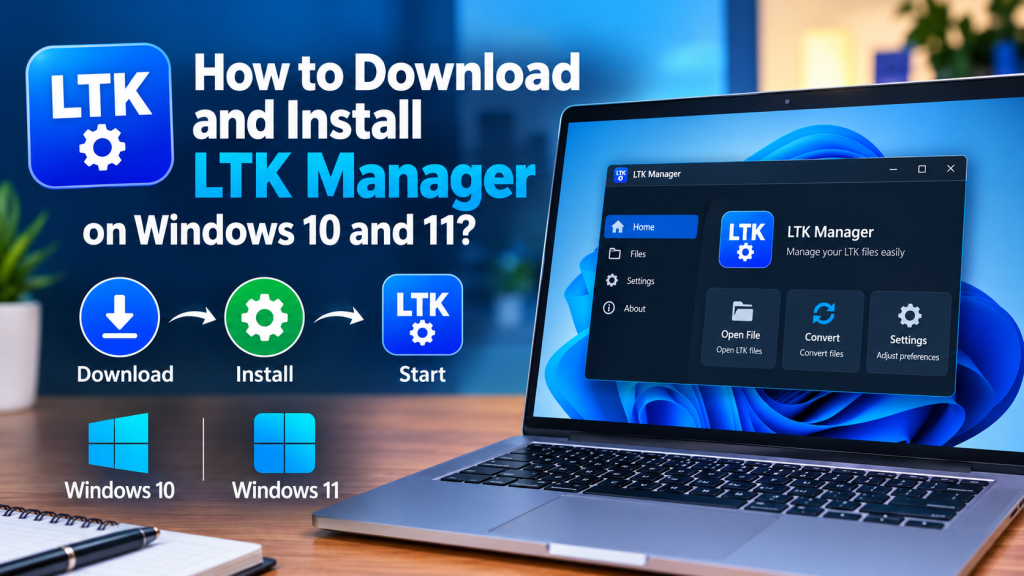
LTK Manager is a free, open-source desktop application that gives League of Legends players a structured way to install, organize, and manage custom skins, maps, HUDs, and audio modifications without manually editing game files. Users import a compatible modification, activate it, start the patcher, and then launch the game through the standard Riot Client, while the original installation remains untouched.
This guide presents a complete installation process for Windows 10 and Windows 11, covering preparation, official download, configuration, first-mod verification, and essential post-installation checks. It is written for beginners and experienced players alike, and requires no programming knowledge. Following the recommended sequence carefully will help users avoid common errors, reduce troubleshooting time, and achieve a stable, long-term setup with confidence.
Why LTK Manager Is Different
LTK Manager is the actively developed successor to the older cslol-manager, which is now in maintenance mode. It supports both the established .fantome format and the newer .modpkg format, which carries full metadata such as name, version, authors, description, and thumbnail, and allows individual layers to be toggled. Its library supports folders, search, sorting, and multiple profiles, so different combinations of modifications can be maintained for different champions or preferences without rebuilding the setup each time.
Its health checks examine modifications on import and again after a game patch, repair what can be repaired, and identify what cannot be fixed before the game loads. Its built-in Workshop also allows experienced users to browse game archives and create or package modifications. Most importantly, LTK Manager never edits the original League installation. It builds an overlay containing only the files changed by enabled modifications, and the patcher answers the game’s file requests from that overlay.
System Requirements and Preparation
Preparation determines whether installation succeeds on the first attempt. Users should confirm the requirements below and ensure that League of Legends is fully updated before downloading the application, because an incomplete update or an incorrect game path produces confusing failures later.
- A computer running Windows 10 or later, 64-bit. Support for macOS and Linux is planned but is not officially available at present.
- A complete and fully updated installation of League of Legends.
- One modification file obtained from a trusted source, in .fantome, .modpkg, or .zip format.
- A stable internet connection for downloading the installer and receiving updates.
Installation Procedure
The procedure below should be followed in the stated order. The patcher stage is essential, as modifications remain inactive until the patcher is running before League of Legends starts a match.
- Download LTK Manager exclusively from the official League Toolkit release page, and select the Windows installer named LTK.Manager_x64-setup.exe. Any website requesting payment for the application should be avoided, as LTK Manager is distributed free of charge.
- Open the downloaded installer, complete the on-screen installation steps, and launch LTK Manager from the Start menu. If Windows displays a security prompt, installation should be paused and the origin of the file verified against the official release.
- Allow LTK Manager to detect the League of Legends installation automatically on first launch. If automatic detection is unsuccessful, open Settings, select General, use Auto-detect, and if necessary choose the folder containing the game executable manually. LTK Manager should remain installed separately from the League of Legends game folder.
- Select Mods in the title bar, then drag the modification file onto the LTK Manager window or use Import in the toolbar to select it. The modification will appear at the top of the library and will be activated by default. Before importing, inspect the modification metadata where available, including its name, version, authors, and description, and confirm the patch for which it was built.
- Select Start in the toolbar and wait until the status bar confirms that the patcher is running. The initial start may require several minutes, as LTK Manager prepares an overlay containing only the game files affected by the enabled modifications.
- Launch League of Legends through the Riot Client in the usual manner, enter a match, and verify that the modification is visible. Custom modifications are visible only to the individual user, while other players continue to see the standard game content.
- After the session, select Stop Patcher. Keep the number of enabled modifications small at first, test in a Practice Tool or custom game before a ranked match, and only then expand the library gradually.
Choosing Safe Modifications
The greatest practical risk in League modding does not come from the manager itself, but from unverified downloads. A genuine modification is a package of game assets such as models, textures, animations, sounds, or interface files. It is never an executable installer, and it never requires a Riot account login.
Users should prefer sources with a clear track record over fresh anonymous uploads, check that the file extension is .modpkg or .fantome, and remain skeptical of any package promising a gameplay advantage, free paid content, or automated play. Such offers fall outside the fan-made visual modification category and carry substantially higher risk. The official partner mod platform is the most reliable starting point, because League Toolkit support and tooling align most closely with what it distributes.
After a League Patch: The Correct Routine
League of Legends patches approximately every two weeks, and every patch disturbs a modification setup. A disciplined routine makes patch day uneventful. First, allow League to finish updating completely through the client before changing anything, because a half-updated installation produces misleading failures. Second, update LTK Manager if prompted, since a patch occasionally changes something the patcher depends on. Third, run a health check on the library and repair what it finds.
Fourth, re-patch by selecting Start and allowing the overlay to rebuild, since the library, profiles, folders, and load order survive a patch untouched. Fifth, test in a Practice Tool or custom game that does not count, checking every champion, map, and effect changed by the modifications. If most modifications work and one does not, that individual modification usually needs to be rebuilt by its author for the new game files, and disabling it until an update appears is the correct response.
Troubleshooting With Precision
If a modification does not appear in game, the most common causes are that it is installed but not enabled, that the patcher is not running, or that the patcher was started before the modification was enabled. In each case, the patcher should be stopped, the modification toggle confirmed, and the patcher restarted. If LTK Manager cannot locate League, the installation path in Settings should be corrected to the folder containing the game executable. If the patcher fails to start, users should check whether another patcher instance is already running, whether League was uninstalled or moved, and whether sufficient permissions are available.
If the application will not start, checking for an already running instance and reviewing the log file provides the fastest diagnosis. On Windows, LTK Manager writes its log to the application data folder under the LeagueToolkit manager directory, and that log should be included when reporting a problem. Slow first builds are normal, because build time depends on the number and total size of enabled modifications and the number of archives to process.
Compliance and Account Safety
Although LTK Manager is open-source and its code can be inspected, no third-party modification manager can guarantee security or protection from account enforcement, and Riot Games does not endorse custom modifications. Users should therefore restrict usage to fan-made visual modifications obtained from reputable communities.
Tools that unlock paid content without ownership, provide competitive advantages, or automate gameplay fall into a substantially higher risk category and should not be installed. Responsible use, verified sources, and adherence to current Riot Games policies remain essential for minimizing risk.
Conclusion
The installation of LTK Manager on Windows 10 and Windows 11 is straightforward when the correct sequence is observed: thorough preparation, an official download, a clean installation, accurate detection of the League of Legends folder, a single verified modification, and patcher activation before gameplay. What separates a stable setup from a frustrating one is not speed, but discipline: one trusted modification first, a test in a non-ranked game, a small enabled library, and a consistent routine after every patch.
Pingback: Is LTK Manager Safe to Use? Will It Get My League of Legends Account Banned? - ltk manager
Pingback: Fix LTK Manager Not Working After a League Patch
Pingback: How to Update LTK Manager to the Latest Version